
Passive network monitor for Windows
See what your PC is talking to, and which app is doing it.
A passive monitor, not a firewall. ZenVizor records what your network is doing without changing it, and keeps everything it sees on your machine. It sends nothing of its own, on purpose.
Free to use. If it earns a spot on your PC, you can chip in later.
Install notes and how to check your download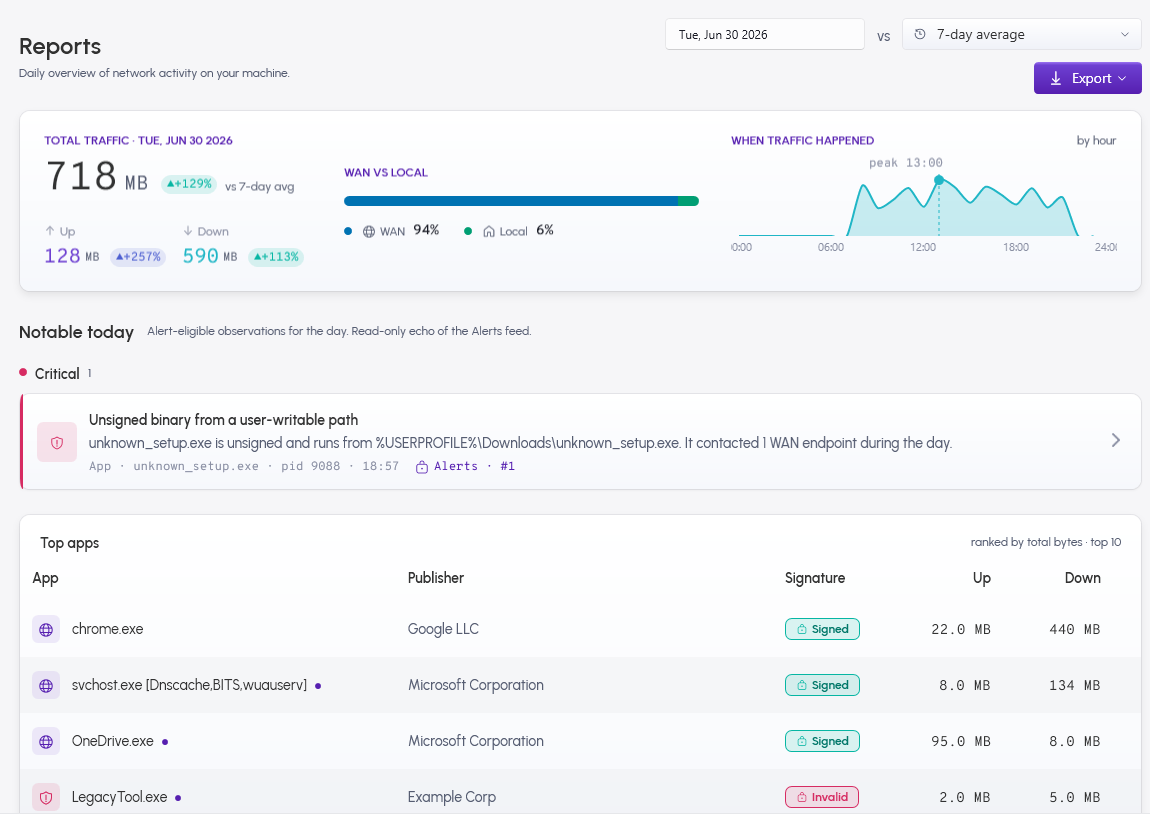
Visibility, not control.
Watches
Names the program behind each connection, svchost included.
Does not block
No firewall to set up and no rules to manage. Windows Defender Firewall or your router does that.
ZenVizor watches your network activity straight from Windows itself (through a built-in tracing feature called Event Tracing for Windows, or ETW) and tells you which program is responsible for it. When traffic comes from svchost.exe, the shared Windows process that quietly runs dozens of background services and the reason so much activity looks anonymous, ZenVizor goes a step further and names the actual service behind it, like Dnscache or BITS, instead of leaving you staring at "svchost." Everything it records stays in a local database on your PC. You get a near-live dashboard (it updates every couple of seconds), history you can scroll back through, and a report you can open for any day. There is no firewall to set up and no rules to manage. If you want a clear record of what your machine is talking to, this is built for exactly that. If you want to block something, Windows Defender Firewall or your router will do it.
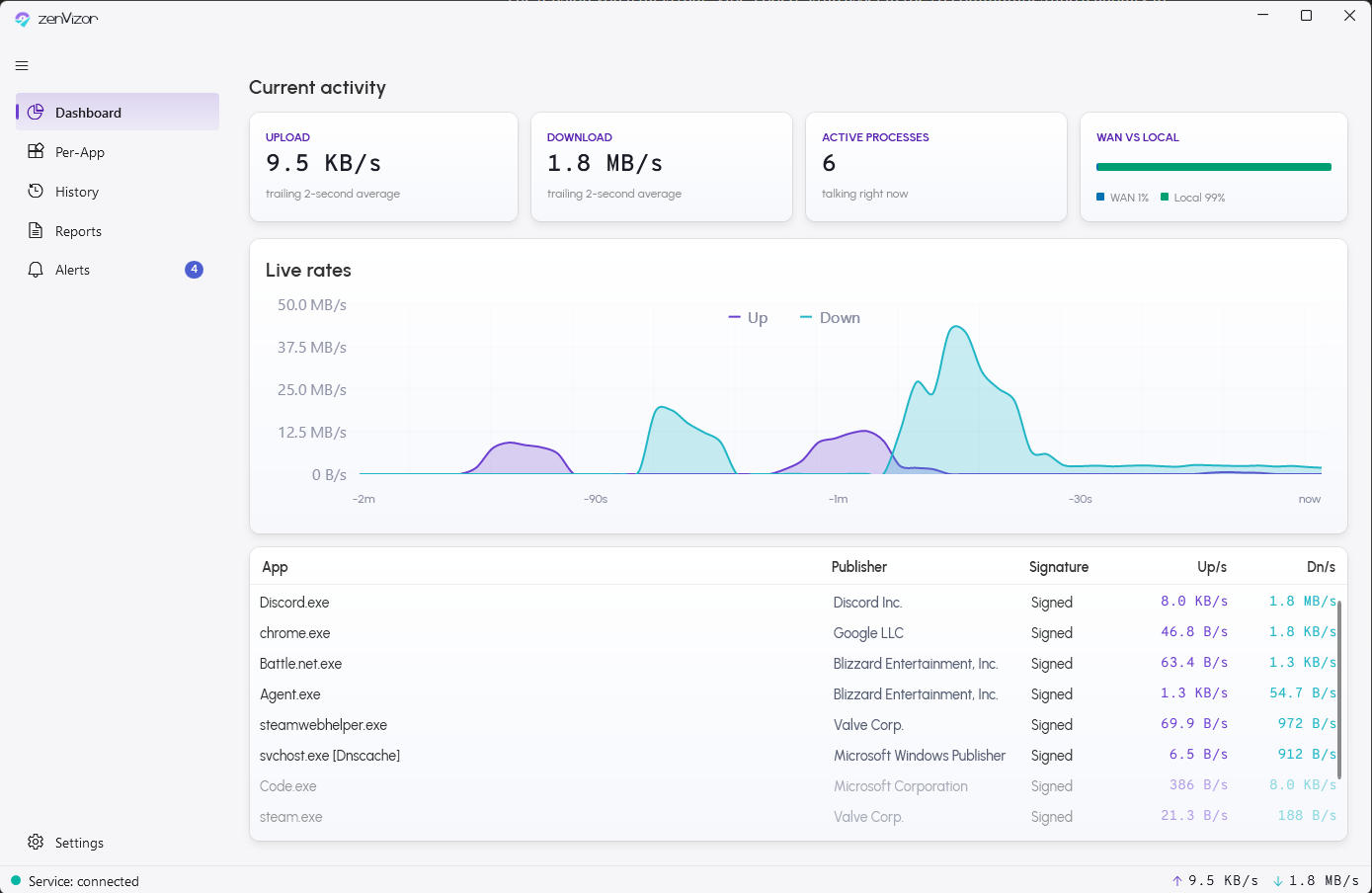
The dashboard shows a near-live view of what is currently talking on your PC.
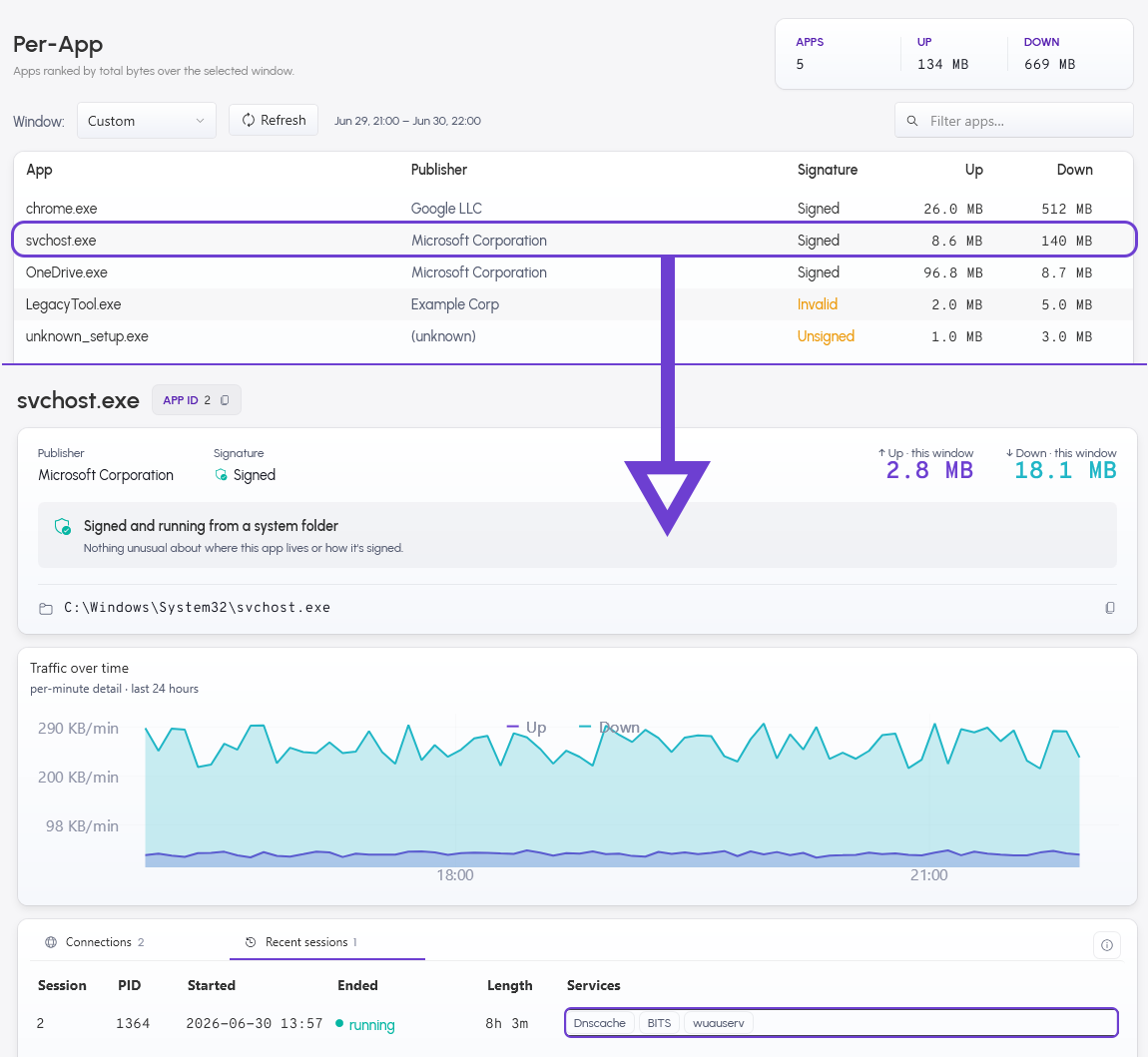
See past "svchost" to the service that's actually talking.
Most network views show this traffic as svchost.exe and leave you to work out the rest. ZenVizor names the Windows service behind it for you. It matches each connection to the program that owns it, and when that program is the shared service host, it asks Windows which services are running inside and shows you those by name. The Per-App view lists every program with its publisher and where it lives on disk, and tells you whether its signature checks out, so a known app is easy to tell apart from something you do not recognize. Open any app to see what it connected to and a simple graph of its data moving in and out over time.
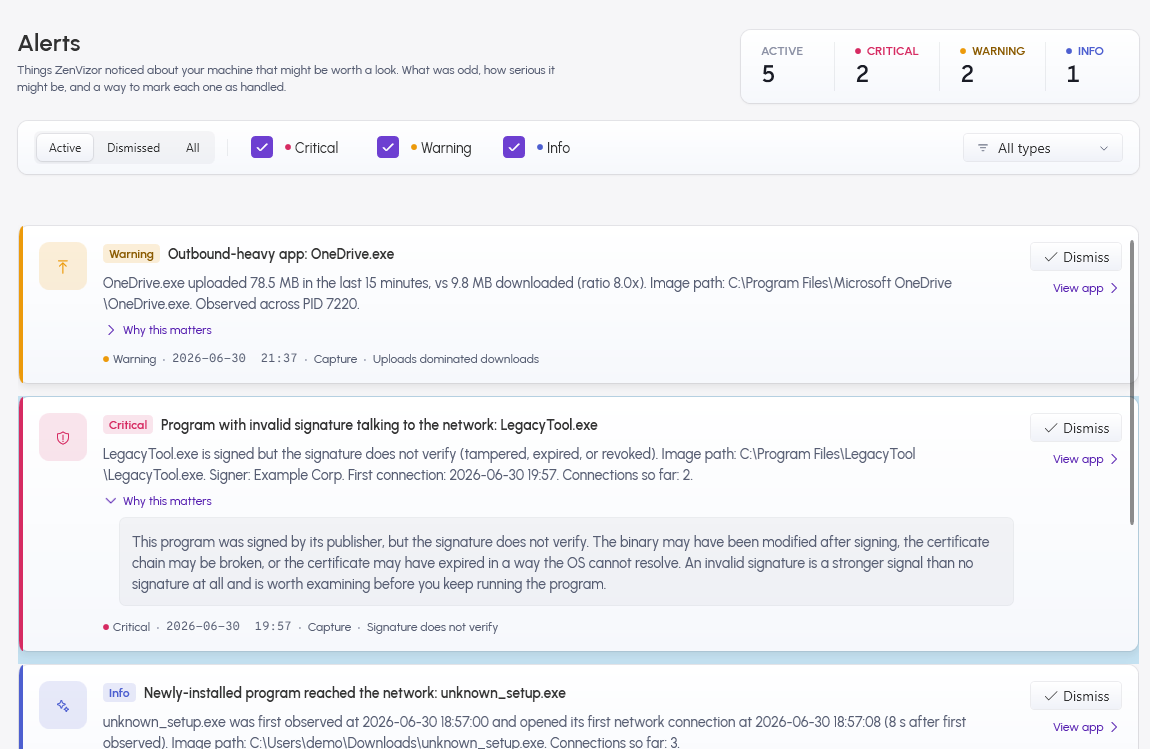
A heads-up when something is worth a second look.
ZenVizor watches for a handful of patterns worth your attention and flags them locally, sorted from a quiet note to a critical warning, always with a plain explanation of what it saw. It never decides for you. Among the things it catches: a program you have never seen reaching the internet for the first time, an unusually large download, a day when one app sends far more than it receives, and a day when an app's traffic jumps well above its own normal. The two it treats most seriously are an unsigned program running from a folder you can write to (like Downloads or Temp) the first time it reaches the network, and a program whose signature is present but does not actually verify. Each of these is normal for some installers and small tools, and each is also classic malware behavior, so ZenVizor names the program, shows you the detail, and leaves the call to you.
Full history, any time window, plus a daily recap.
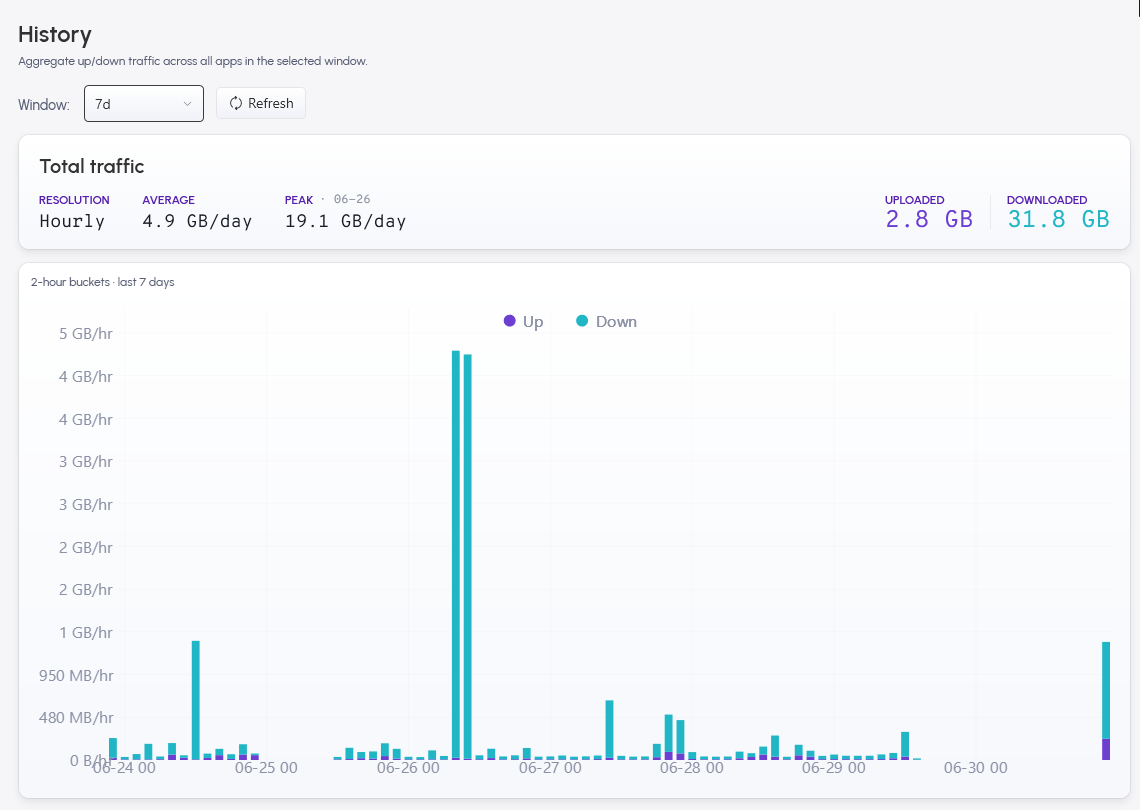
ZenVizor keeps a running history of your network use and lets you look at any stretch of time, from the last few minutes to months back. Pick a day and it loads that day's report: which programs moved the most data, and when. To keep a copy or dig in elsewhere, export the report to a spreadsheet (CSV) or a web page (HTML). How long ZenVizor holds onto detailed versus summarized history is up to you, and you can change it in Settings.
Inside svchost
Most network views show svchost. ZenVizor names the services inside.
The same traffic, shown two ways: a nameless host process, or the services running inside it.
What you usually see
svchost.exe
142 MB
Just a shared host process, with no clue which service it is.
What ZenVizor shows
svchost.exe
142 MB
running: Dnscache, BITS, wuauserv
ZenVizor names the services and reports the process total. It does not split the bytes between co-hosted services, because that number can't be measured honestly.
Local alerts
It flags what stands out, and leaves the call to you.
Sorted from a quiet note to a critical warning, always with a plain explanation. Three examples:
Critical
Unsigned app from a writable folder reached the network.
Warning
This app sent far more than it received today.
Info
A new app reached the internet for the first time.
A monitor that stays quiet itself
Don't take our word for it. Check.
ZenVizor watches network traffic, so it holds itself to the same standard it reports on. Here is what you can check for yourself.
Sends nothing of its own. Verified before every release.
Everything it records stays on your machine.
Open source. Every claim maps to a file you can read.