ZenVizor comes as a single Windows installer that already includes everything it needs to run, so a fresh PC needs nothing extra. Once installed, it settles to about 55 MB. The installer also sets up a shared Microsoft runtime that other apps may use, which is why that one piece is left in place if you ever uninstall.
Windows 10/1164-bit~55 MB
Download for Windows (recommended)
Gets you the latest installer (ZenVizorSetup.exe) straight from the official release. This is the one most people want.
ZenVizor is free under the GPL-3.0-or-later license. If it earns a place on your PC, you can support its development whenever you like. Worth bookmarking now, since there is no nag screen later to remind you.
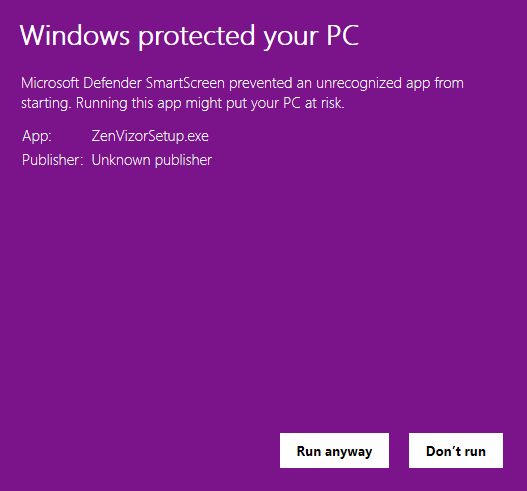
What SmartScreen looks like the first time you run the installer.
1
The first time you run ZenVizorSetup.exe, Windows may show a blue "Windows protected your PC" screen from SmartScreen. That is expected, and it does not mean anything is wrong with the file. SmartScreen shows this for installers that are not signed with a certificate Windows already recognizes, and ZenVizor's installer is not signed yet because the publisher is new.
2
To continue, click More info, then Run anyway. Windows will then ask for permission to install, because ZenVizor sets up a background service and that needs administrator approval.
3
If you would rather check the file before you run it, the next section shows how.
Verify
Check your download (optional).
Each release publishes a checksum (a unique fingerprint) for the installer, in a file called SHA256SUMS.txt attached to the release. To confirm your copy matches, run this in PowerShell:
The value it prints should match the one above and the one on the release page. If it does not match, do not run the file.
Requirements
What you need.
Windows 10 or 11 (64-bit).
About 150 MB of free space to install. ZenVizor itself settles to roughly 55 MB; the history database grows slowly over time, within the limits you set.
Administrator access to install. Everyday use of the dashboard does not need it.
Permissions
Why it asks for administrator access.
ZenVizor installs a small background service that does the actual watching and recording. Reading network activity from Windows (through its built-in event tracing, ETW) and writing to the protected history database both need elevated rights, so the installer asks for administrator approval once, up front. The dashboard you open day to day runs as your normal account, with no special access. It cannot reach the history file directly; it asks the background service for what it needs over a private local channel. Keeping those two apart means the powerful part stays small and the data stays locked down.
Background service (elevated)
Watches ETW, writes the history database
Private local channel
Dashboard (your account)
No special access, never touches the network
Details
About the included runtime.
The installer includes the official Microsoft .NET 10 Desktop Runtime (version 10.0.8, 64-bit). If your PC already has a compatible version, the installer skips it; if not, it installs quietly from what is already in the download, with nothing extra to fetch. That keeps installs working even on locked-down or offline machines. If you uninstall ZenVizor, this runtime stays behind, because other apps may rely on it. You can remove it later through Windows Settings if nothing else needs it.
Source and license.
ZenVizor is open source under the GPL-3.0-or-later license. The full code, the installer scripts, and the build plan are on GitHub. To build it yourself, you will need the .NET 10 SDK and the WiX Toolset 6.0.1.